

How to update your profile information
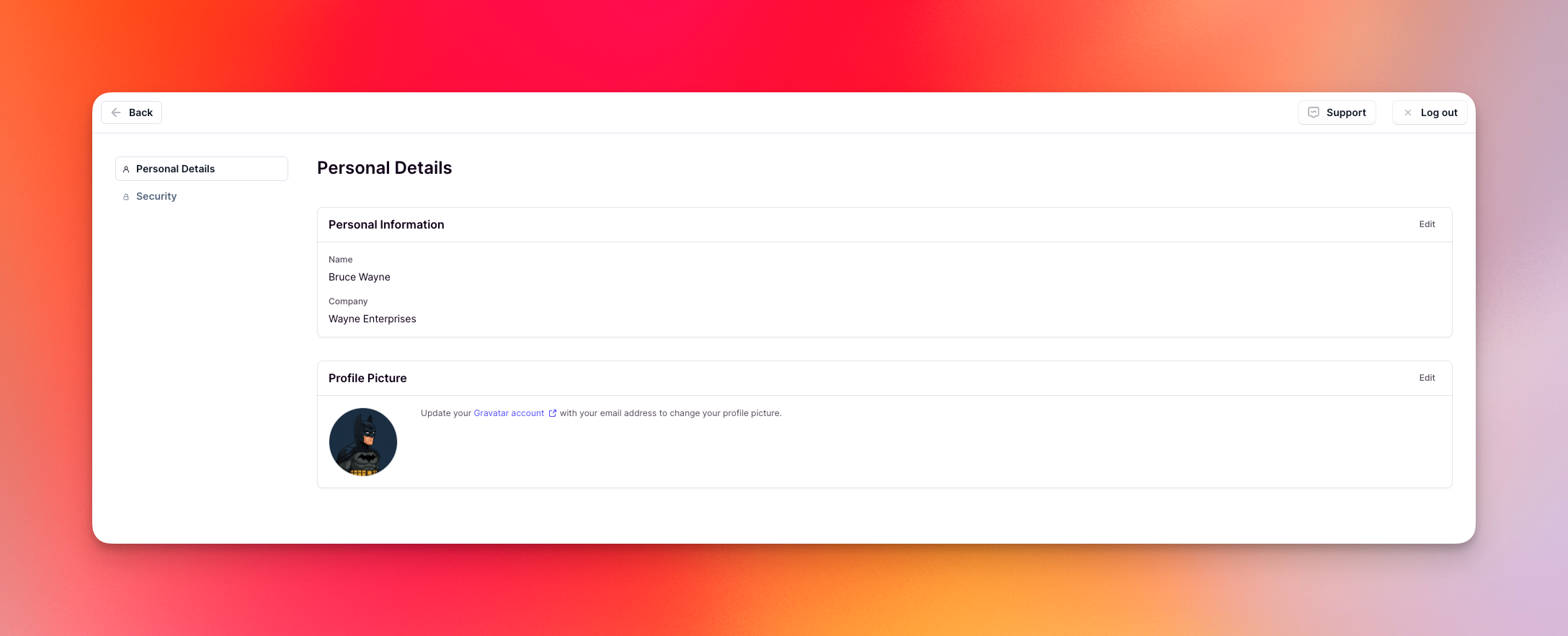
- Log into Relevance AI at https://app.relevanceai.com
- Click on your profile picture in the top right corner, then select Profile
- You will be on the Personal Details page
- Click the Edit button on the Personal Information section
- Update your first name, last name, and/or company as needed
- Click ‘Save Changes’ to update your profile
About your name
Your name appears throughout Relevance AI in several places:- When you call an Agent
- What your collaborators see when you interact with shared resources
- What admins see on their Members page
- Throughout the platform when your account is referenced
About your company
The company field updates only your personal profile and does not affect your organization or project names in Relevance AI.Changing your profile picture
Your profile picture appears throughout Relevance AI when you interact with agents, collaborate with team members, and across the platform. How you update your profile picture depends on how you signed up for Relevance AI.For Google sign-in users
If you signed up using Google authentication, your profile picture comes from your Google account. To change it, update your Google profile picture and it will automatically sync to Relevance AI.For Enterprise users with SSO enforced
If you’re an Enterprise user and your organization has enforced Single Sign-On (SSO), your profile picture comes from your organization’s identity provider. To change it, update your profile picture in your organization’s identity management system.For all other users (Gravatar)
If you signed up with an email and password, you can set your profile picture using Gravatar.What is Gravatar? Gravatar (Globally Recognized Avatar) is a free service that allows you to use a single profile picture across multiple websites and platforms. Once you set up your Gravatar profile with your email address, any website that supports Gravatar will automatically display your chosen picture.
Setting up your Gravatar profile picture
Follow these steps to set up your profile picture using Gravatar:Create a Gravatar account
Go to Gravatar and create an account (if you don’t have one). Use the same email address as your Relevance AI account when creating your Gravatar profile.
Navigate to Profile Picture settings
Return to Relevance AI and navigate to Profile → Personal Details → Profile Picture.
Updating your profile picture
If you’ve updated your Gravatar profile picture and want to sync the changes to Relevance AI:Removing your profile picture
To remove your profile picture:Frequently asked questions (FAQs)
Will changing my name affect my existing projects or agents?
Will changing my name affect my existing projects or agents?
No, changing your name will only update how your name is displayed across Relevance AI. All your projects, agents, and resources will remain intact and unchanged.
Can I change my name as many times as I want?
Can I change my name as many times as I want?
Yes, you can update your name at any time. There are no restrictions on how frequently you can change your display name.
What's the difference between changing my company here and changing my organization name?
What's the difference between changing my company here and changing my organization name?
The company field on your profile is personal information that doesn’t affect your organization or project structure. To change your organization or project name, see Change project and organization name.
Will my collaborators be notified when I change my name?
Will my collaborators be notified when I change my name?
No, collaborators will not receive a notification. They will simply see your updated name the next time they interact with you or view shared resources.
My profile picture isn't updating from Gravatar. What should I do?
My profile picture isn't updating from Gravatar. What should I do?
Make sure you’re using the same email address for both your Gravatar account and your Relevance AI account. You can check your Relevance AI email on the Security page. If your emails match and it’s still not working, try removing your profile picture and retrieving it again.
Can I upload a profile picture directly to Relevance AI?
Can I upload a profile picture directly to Relevance AI?
The ability to upload profile pictures directly to Relevance AI is on our roadmap and will be available in the future. Currently, you need to use Gravatar, Google, or your organization’s SSO provider.
I signed up with Google but want to use a different profile picture. What can I do?
I signed up with Google but want to use a different profile picture. What can I do?
If you signed up with Google, your profile picture is synced from your Google account. You’ll need to change your Google profile picture to update it in Relevance AI.
What if I don't want to sign up for Gravatar but want a profile picture?
What if I don't want to sign up for Gravatar but want a profile picture?
Gravatar is a secure platform owned by Automattic (the company behind WordPress) and is trusted by millions of websites worldwide. However, if you prefer not to use Gravatar, you’ll need to wait for us to add the ability to upload profile pictures directly to Relevance AI. This feature is on our roadmap and will be available in the future.
I'm having trouble updating my profile information. What should I do?
I'm having trouble updating my profile information. What should I do?
If you’re experiencing issues updating your profile, please reach out to our support team here.